
Troubleshooting Windows 11: Event ID 10010
Event ID 10010 in Windows 11 indicates DCOM issues. Here are solutions to resolve the error.
The error message with event ID 10010 occurs when Windows is unable to establish a connection to the Distributed Component Object Model (DCOM). This protocol is crucial for communication between different software components and is used in both Windows 10 and Windows 11. Such a problem can significantly impair the functionality of applications and services.
DCOM, developed by Microsoft, allows COM objects to communicate over a network. This means that programs can run on another computer as if they were running locally. In Windows, DCOM is responsible for the communication of numerous services, highlighting its importance for system stability.
Checking Access Permissions
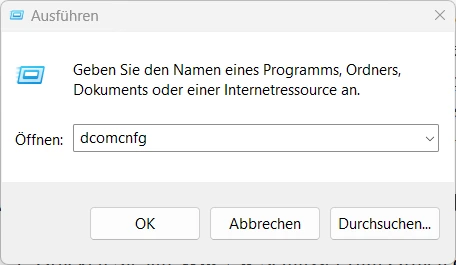
To check the access permissions for DCOM, press the Win + R key combination and enter the command dcomcnfg. This opens the Component Services window. In the drop-down menu, navigate to "Component Services," select "Computer," and then choose "My Computer."
A right-click on the "My Computer" field opens a context menu where you can select the option "Properties." In the window that appears, select the "COM Security" tab. Here, you can choose "Edit Default..." in the "Access Permissions" section to review the permissions.
Ensure that the "SELF" group has the permissions for "Local Access" and "Remote Access" set to "Allow." These settings are crucial to ensure that DCOM functions properly and that no connection issues arise.
Default Properties and Service Configuration
In the "Default Properties" tab, you should check whether the settings for DCOM on this computer are enabled. The default authentication level should be set to "Connect" and the default impersonation level to "Identify." This configuration is important to ensure the security and functionality of DCOM communication.
Another step to resolve the issue is to check the "Function Discovery Resource Publication" service. Execute the WIN + R key combination and enter services.msc to open the "Services" menu. Look for the "Function Discovery Resource Publication" service and right-click on it.
By double-clicking on the entry, you can edit the properties. In the "Properties" window, select the "Startup type" dropdown menu and set it to "Manual." After confirming with "OK," you should restart your computer to apply the changes.
Another possible reason for event ID 10010 could be corrupted system files. To check this, you should ensure the integrity of the system files. Corruptions in the Windows file system can lead to various issues, including the aforementioned error message.
To repair missing or corrupted components, you can use the appropriate Windows tools designed to restore system files. These measures are important to ensure the stability and performance of the operating system.
Event ID 10010 is a common issue that affects many Windows users and indicates DCOM problems.
Ähnliche Artikel

EU Commissioner criticizes tech giants for migration crisis
Henna Virkkunen blames Meta and TikTok for the migration crisis. Misinformation has contributed to the crossing of tens ...
Microsoft raises prices for Windows licenses
PC manufacturers will have to pay higher prices for Windows licenses, putting further pressure on profit margins....

New Relic launches support program for startups
New Relic has launched a new program that offers startups free access to the observability platform....
D-Link Reduces Prices for Smart Managed Switches
D-Link has reduced the list prices for two series of Smart Managed Switches by up to 25 percent....

comment Kommentare (0)
Noch keine Kommentare. Schreiben Sie den ersten!
Kommentar hinterlassen